Completed sessions
Look back at the session you finished.
Review your workout highlights and recorded sets, then choose what you want to share.
01 / 09
The session you finished.
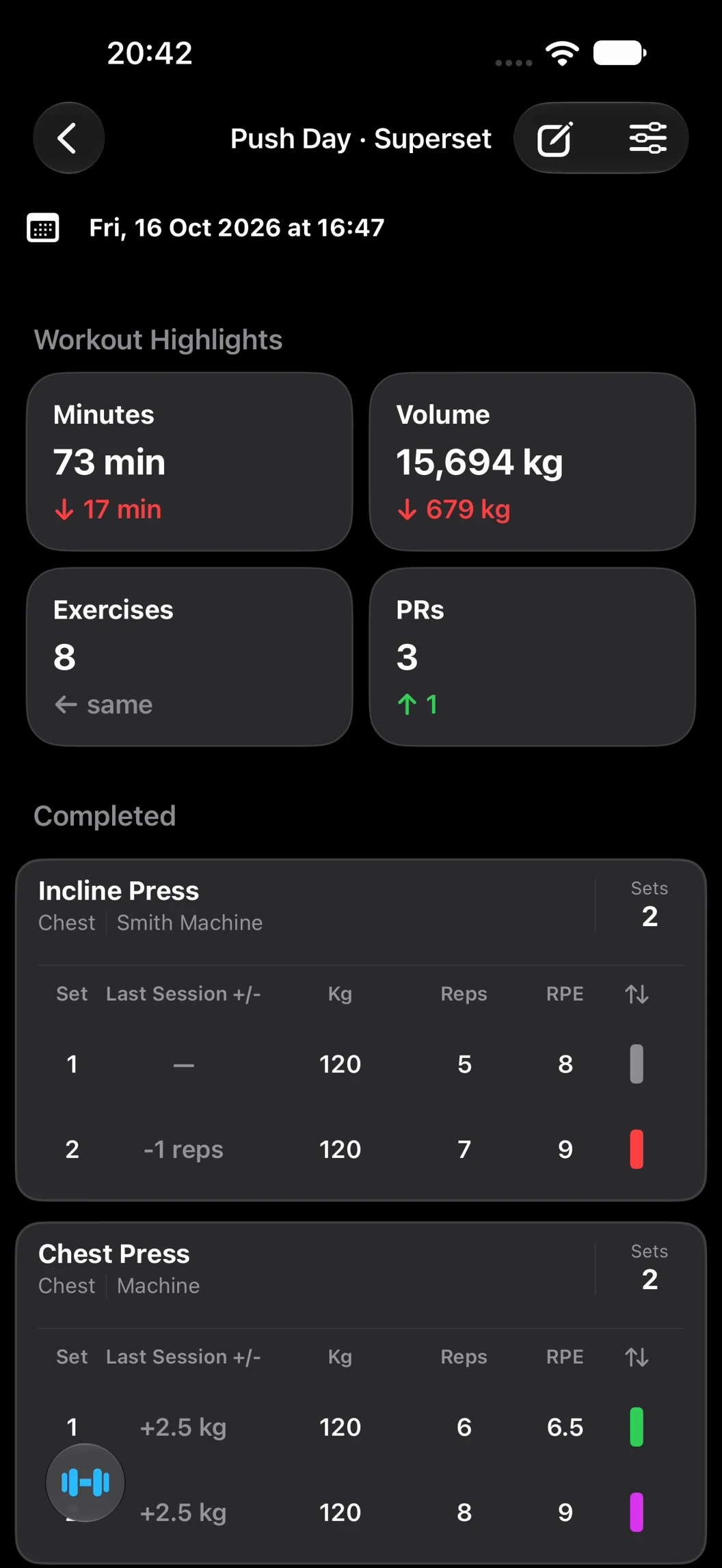
Your completed workout has its own record, with its date, highlights, and recorded exercises.
Open a session from your history to look back at that workout.
02 / 09
See what the session added up to.
Review the recorded minutes, volume, exercise count, and personal records in Workout Highlights.
The comparisons beside those totals put this session alongside your earlier training.
03 / 09
Look inside each exercise.
See your recorded sets, weight, reps, and RPE together in the completed exercise rows.
The Last Session comparisons give you more context for the values you recorded.
Explore exercise analytics →04 / 09
A swipe opens the next step.
Swipe a completed exercise row to reveal its actions: green for sharing, purple for analytics, and blue for adding it to a workout.
Select an action in the preview or follow the examples below.
View exercise analytics →Share an exercise →Add to a workout →05 / 09
Look beyond this one session.
Use the purple analytics action to open an exercise’s history and look at its recorded performance over time.
Shown here: the Pec Deck Fly analytics example, with its performance graph and personal records.
Explore exercise analytics →07 / 09
Keep the exercise in your routines.
The blue action opens the Add sheet. Select the saved workouts that should include the exercise.
Tick a workout to add the exercise, or untick a selected workout to remove it. Here, Chest-Supported Row is selected in Pull Day.
09 / 09
Choose how your workout is presented.
Choose Summary, Exercises, Poster, or Body for your workout card.
Keep scrolling to preview all four. The sharing guide also covers muscle colours and cards for exercises, streaks, and reports.
Explore sharing →