Exercise analytics
Give your progress some context.
Follow a lift over time, choose the measure that matters, and compare the workouts that belong together.
01 / 15
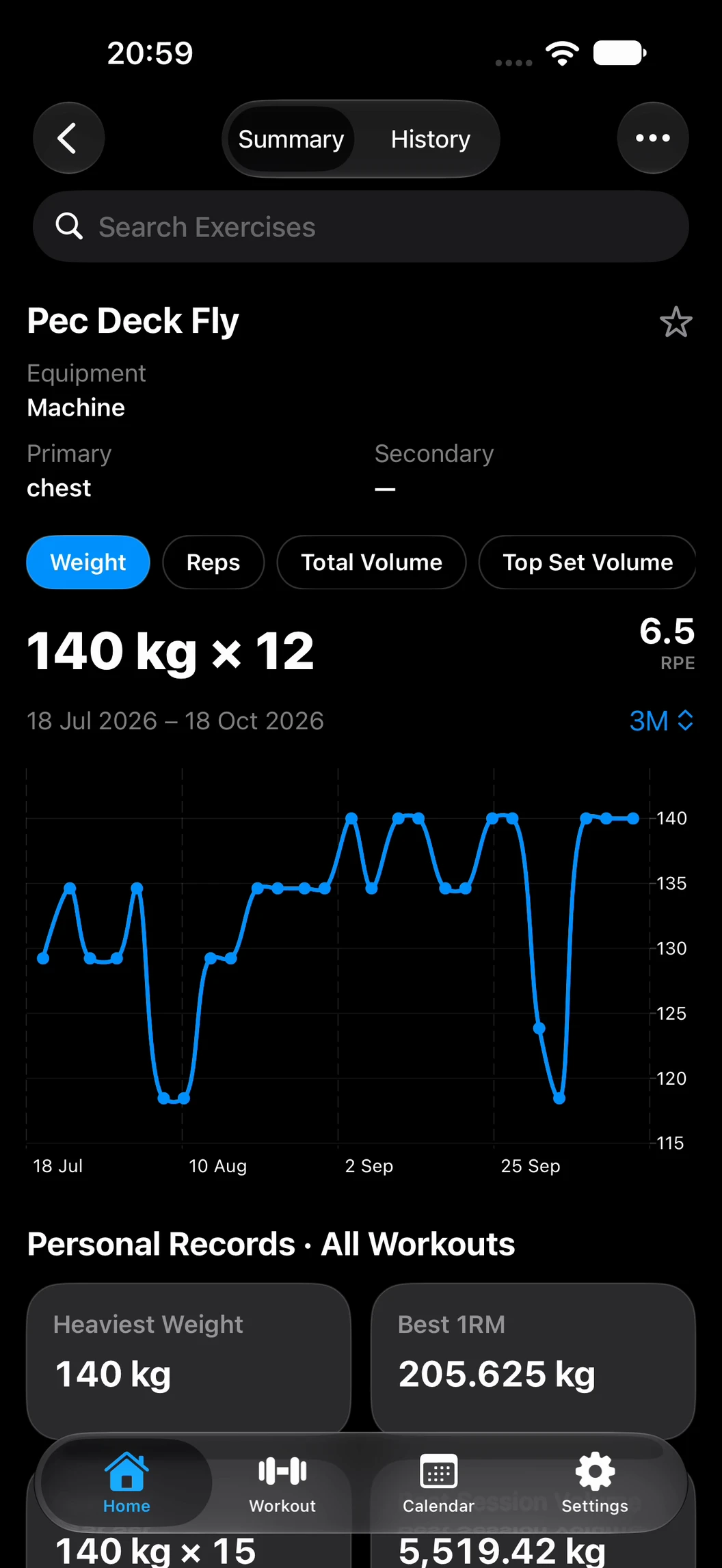
Follow one exercise over time.
The exercise name, equipment, and muscle details sit above its recorded performance.
Start with the Summary view to see your weight history and personal records together.
02 / 15
Look beyond the weight.
Switch to Reps to see how your recorded rep counts change across sessions.
A different measure can reveal a different part of the same exercise history.
03 / 15
See the work across your sets.
Total Volume gives you another view of the work recorded for the exercise.
Compare its pattern with your weight and reps rather than relying on one number.
04 / 15
Focus on your top set.
Choose Top Set Volume to look at that measure across your recorded sessions.
Keep the same exercise in view while changing the part of your performance you inspect.
05 / 15
Another way to view your performance.
The metric row also includes a 1RM option.
Move along the row to reach the measure you want to inspect.
06 / 15
Choose the period you want to review.
Use the date-range control beside the graph to change the period you are reviewing.
Shown here: three months of recorded sessions. Look at a shorter or longer period when you want a different perspective.
07 / 15
Compare the sessions that belong together.
Open the workout filter beside the metric buttons.
If you use separate workouts for different gyms or machines with different resistance, this lets you review those sessions separately.
08 / 15
Choose which workouts to include.
The Filter Workouts sheet lists the workouts available for this exercise.
All includes your recorded workouts. Select a particular workout when you want a more specific comparison.
09 / 15
Keep your comparison relevant.
Here, Push Day · Alternate is selected instead of All.
Choose the workout you want to inspect, then use Done to return to the graph.
10 / 15
See the graph in that workout’s context.
The graph now shows the exercise results for the selected workout.
The Personal Records section also changes to Records · Selected Workouts, keeping the numbers in the same context.
11 / 15
Look inside a recorded point.
Move across the graph in the app to inspect a recorded session.
The highlighted point shows its date and recorded value above the graph, with RPE alongside it.
12 / 15
Keep your personal records together.
Review Heaviest Weight, Best 1RM, Best Set, and Best Session Volume in one place.
These records reflect the selected workout context shown above them.
13 / 15
See the alternatives for this exercise.
Open Replaceable Exercises to see the alternatives listed for the exercise.
Here, Pec Deck Fly has Dumbbell Fly and Cable Fly listed beneath it.
14 / 15
Go back to the sets behind the graph.
Switch from Summary to History to see the past sessions where you recorded the exercise.
Each entry brings its date, workout, sets, weight, reps, RPE, and last-session comparisons back into view.