Home Screen widgets
Keep your progress in view.
Your schedule, your streak, and the training you want to follow. Put the useful parts of GymTorch on your Home Screen.
01 / 12
Your training, on your Home Screen.
Keep useful training information close, even when GymTorch isn’t open.
Choose widgets for today’s schedule, your week, your streak, or the exercise and workout you want to follow.
02 / 12
Know what’s planned for today.
The Today widget brings your scheduled workout and its time onto your Home Screen.
Check what’s next without opening your calendar.
03 / 12
Give your next session a little more room.
The wider Today widget shows more of the session at a glance.
Open GymTorch from the widget when you are ready to get back to your training.
04 / 12
Keep a view of the week nearby.
The Weekly Report widget brings your training week onto your Home Screen.
The small layout shows your workout count and muscle distribution together.
05 / 12
See more of the work you put in.
Choose the wider Weekly Report widget for the week’s workouts, duration, volume, and muscle distribution.
Use it as a quick view of your recorded training between sessions.
06 / 12
Keep your consistency in sight.
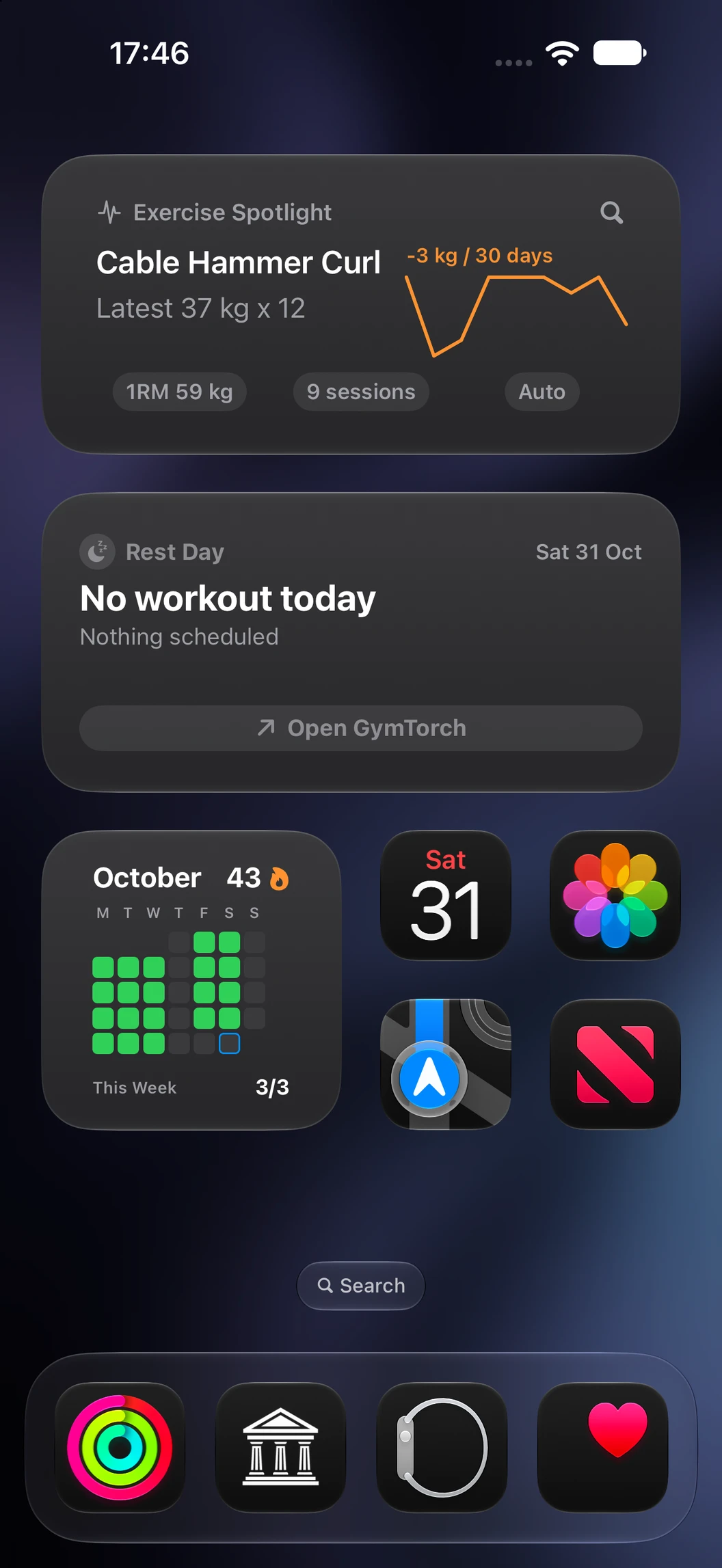
Streak Month brings your month of recorded training into a compact calendar.
See your current streak and your weekly progress at a glance.
07 / 12
Make room for the wider pattern.
The wider streak widget gives the month more space alongside your current streak, best streak, and weekly progress.
Choose the layout that suits your Home Screen.
08 / 12
Keep a lift’s progress in view.
Exercise Spotlight shows an exercise snapshot from Analytics, including its latest performance and recent trend.
Follow a lift you care about without having to open its history each time.
09 / 12
Keep a workout’s progress close.
Workout Spotlight brings a saved workout’s recorded performance and chart onto your Home Screen.
See the selected workout’s latest values and trend between sessions.
10 / 12
Choose the exercise you want to see.
In exercise analytics, scroll to Options and open Displayed Exercise.
Use Most Completed or pick a specific exercise to keep that lift in your spotlight.
11 / 12
Choose which workout stays in view.
In workout analytics, open Displayed Workout under Options.
Show your most completed workout, your most recent one, or a specific workout you want to follow.
12 / 12
Show the chart that matters to you.
Chart Shown lets you choose Volume, Consistency, or Minutes for Workout Spotlight.
Keep the measure you want to follow on your Home Screen. Shown here: Volume.
Take a closer look at the numbers.
Open exercise analytics when you want the sessions and recorded sets behind your spotlight.
Explore exercise analytics →