Workout tracking
Keep your next set in focus.
From your first set to your next rest. See how GymTorch keeps your workout, set details, and session tools together.
01 / 14
Your session, ready to work through.
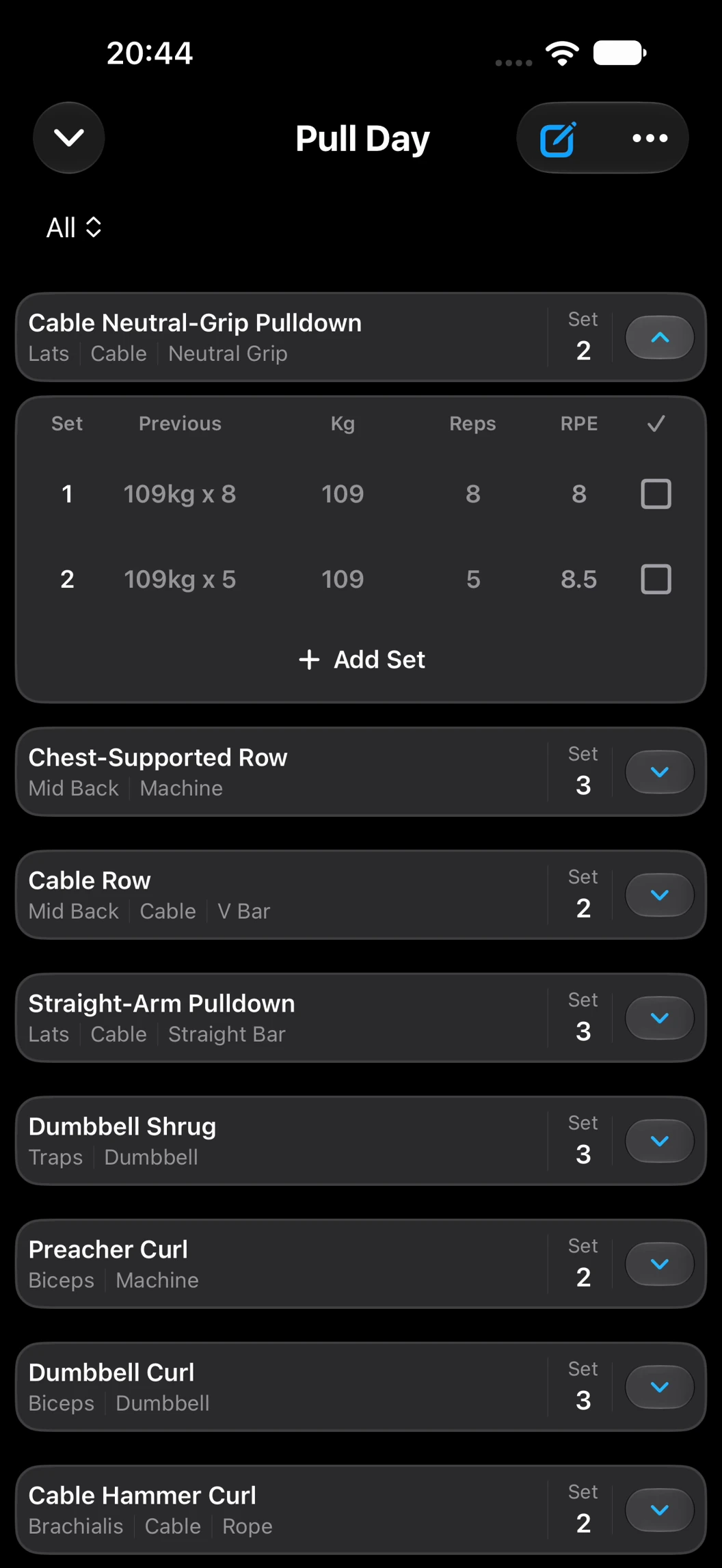
Open your workout and keep its exercises together in one place. Expand the exercise you are training to see its set rows.
The session stays with you as you move from one exercise to the next.
02 / 14
Give each set its own meaning.
Tap the number at the start of a set row to open its options.
That is where you can change the kind of set you are recording.
03 / 14
Choose the set you are doing.
Select a normal, warm-up, failure, or drop set from the sheet.
Keep the type of effort in your record alongside the weight and reps.
04 / 14
Manage sets from the exercise header.
Tap the set count in the exercise header, next to the expand/collapse chevron.
This opens the sheet for managing all the sets in that exercise.
05 / 14
Adjust your sets together.
After opening the count in the exercise header, review this exercise’s sets together in one sheet.
Add a set, remove one, or change the order using the controls beside the rows.
06 / 14
Keep last time close at hand.
Your previous weight and reps sit beside the values you are recording now.
Use that reference when deciding what to attempt next, without leaving your session.
07 / 14
Record how hard the set felt.
Tap the RPE value to choose your effort rating. The sheet explains the selected level.
Here, 10 is Max Effort: no more reps possible. Your log can capture how the set felt as well as what you lifted.
08 / 14
Mark the set. Keep moving.
Use the checkmark to mark a set as completed. The checked row stays visible in your session.
See what you have done and which sets are still waiting.
09 / 14
Your rest, at a glance.
The rest timer stays at the bottom of your workout, close to the exercise list.
See the countdown, adjust it with −15 or +15, or skip the rest when you are ready.
10 / 14
A swipe opens more options.
Swipe an exercise to reveal its actions. The purple S opens supersets; the orange action opens exercise options.
Use those options to replace the exercise or add another below it when your session needs to change.
11 / 14
Change the exercise when you need to.
In the replacement list, swipe an alternative to reveal its Add and Replace actions.
Choose Replace to swap it into your workout, or Add to include it as another exercise.
12 / 14
Bring exercises into a superset.
Open the superset sheet and choose another exercise to pair with the selected one.
Review the exercises available in your current workout and organise the pairing from there.
13 / 14
Know what goes on the bar.
Use the plate calculator to see the plates needed per side for your target weight.
Choose the bar and review the available equipment. Here, the calculator shows a 125 kg target with a standard 20 kg bar.
14 / 14
Leave the view. Keep your session close.
Move back to Home and your running workout stays in the compact bar at the bottom.
See the workout name, elapsed time, and progress while you look around the app, then return to your session.
And after the last set?
Open your completed session to review its highlights and recorded exercises, then choose what you want to share.
Explore your completed session → Explore your reports →